Getting Started
Create an account, sign in, and send your first message
Getting started
Try it before you sign in
You can open chat.aize.dev and start typing right away — the home page is a live chat composer with example prompts. To send messages, save chats, and unlock all models, you'll be asked to sign in.
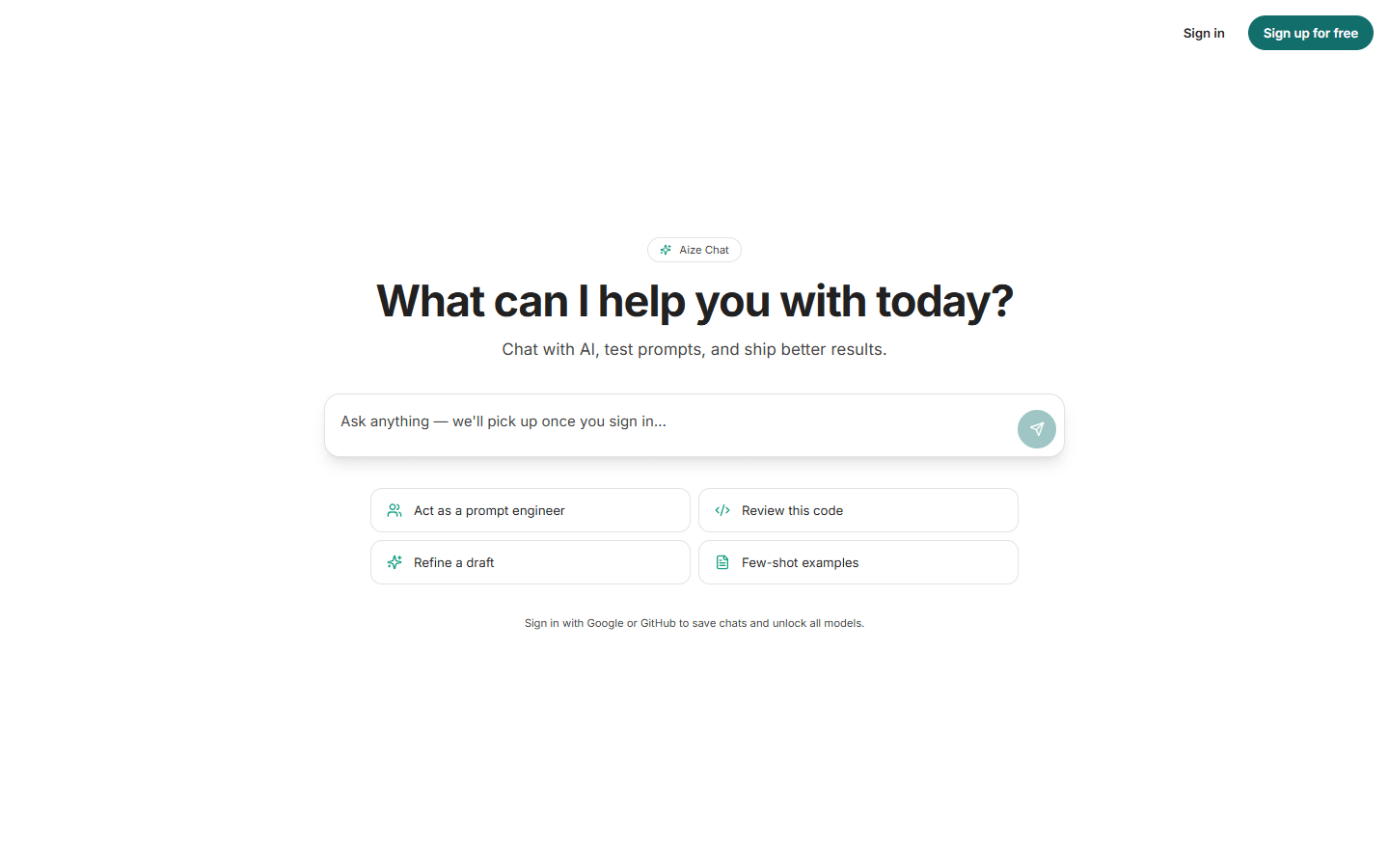
Create an account or sign in
Click Sign in (or just send a message as a guest) and pick how you want to authenticate:
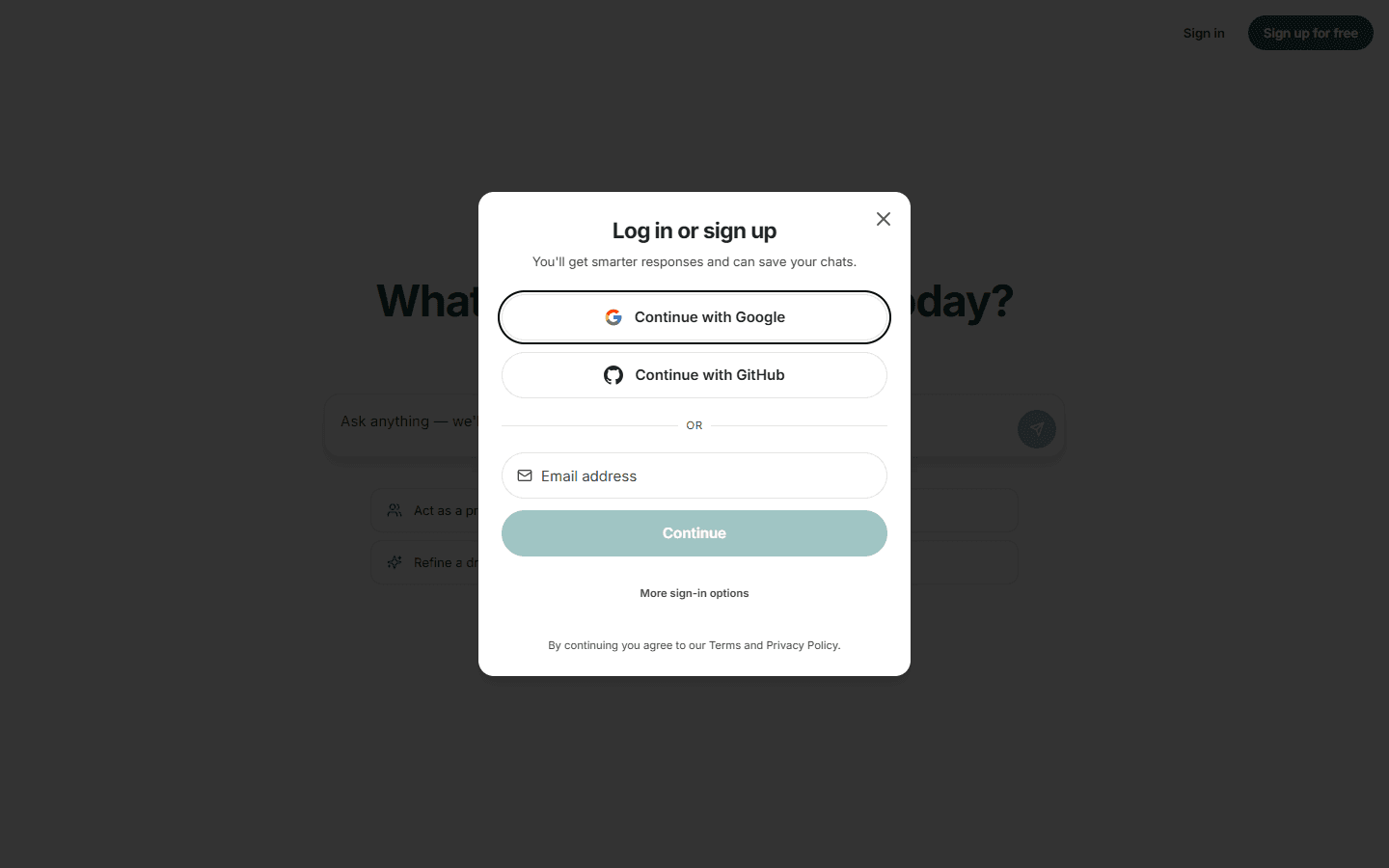
- Continue with Google / Microsoft / GitHub — one click, no password to remember.
- Email — enter your email address to receive a magic link; clicking it signs you in without a password.
- Username and password — available under More sign-in options → Try another way. For your security, password sign-in requires two-factor authentication: on first use you'll scan a QR code with any authenticator app (Google Authenticator, 1Password, Aegis, …) and enter the 6-digit code.
Your account works across all Aize products — the same login is used for the Aize Platform, where you manage members, invoices, and API keys.
Your first chat
After signing in you land in a new conversation with the General Agent — an all-purpose assistant — using the Auto model, which automatically routes your message to a capable model and is included in the Free plan.
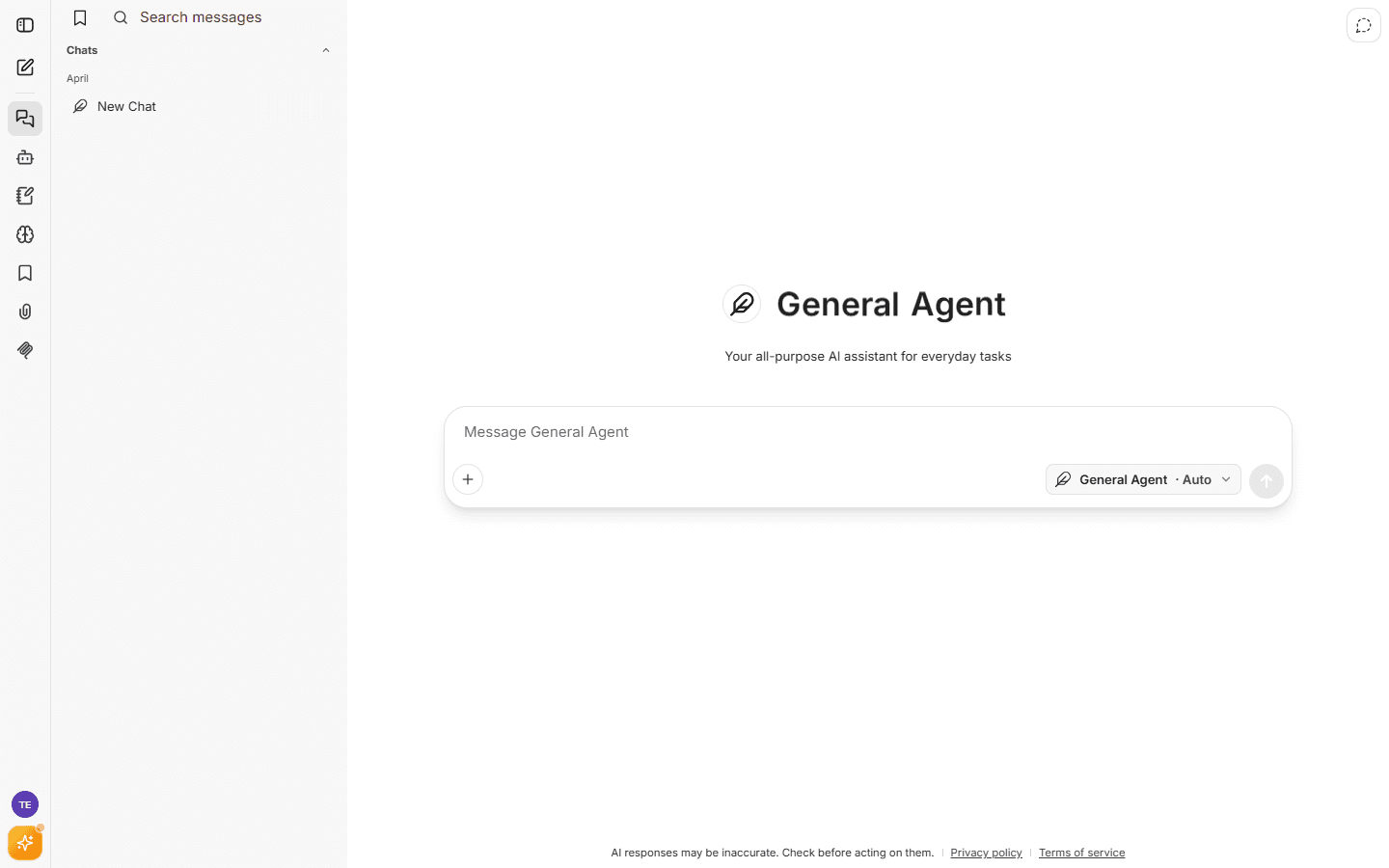
- Type your message and press Enter (use Shift+Enter for a new line).
- Use the + button to attach files or toggle tools like web search.
- Use the
General Agent · Autochip to switch agents or models. - Your conversations are saved in the left sidebar automatically, grouped by date, and searchable from the Search messages box.
Finding your way around
The icon rail on the far left gives you:
- New chat — start a fresh conversation
- Chat history — all your saved conversations
- Agent Builder — create your own agents
- Prompts — reusable prompt library
- Memories — what the assistant remembers about you
- Bookmarks — conversations you've tagged
- Files — everything you've uploaded
- Connectors — connect and manage your tools
- Account (avatar) — settings, billing, files, Platform access, and sign-out
Tip: the account menu also links to Aize Platform, as Platform access, where you can manage members, view invoices, and create API keys.