Aize Chat
Chat Features
Attachments, web search, file search, images, and message tools
Chat features
The + menu: attachments and tools
The + button in the composer is the hub for everything you can bring into a conversation:
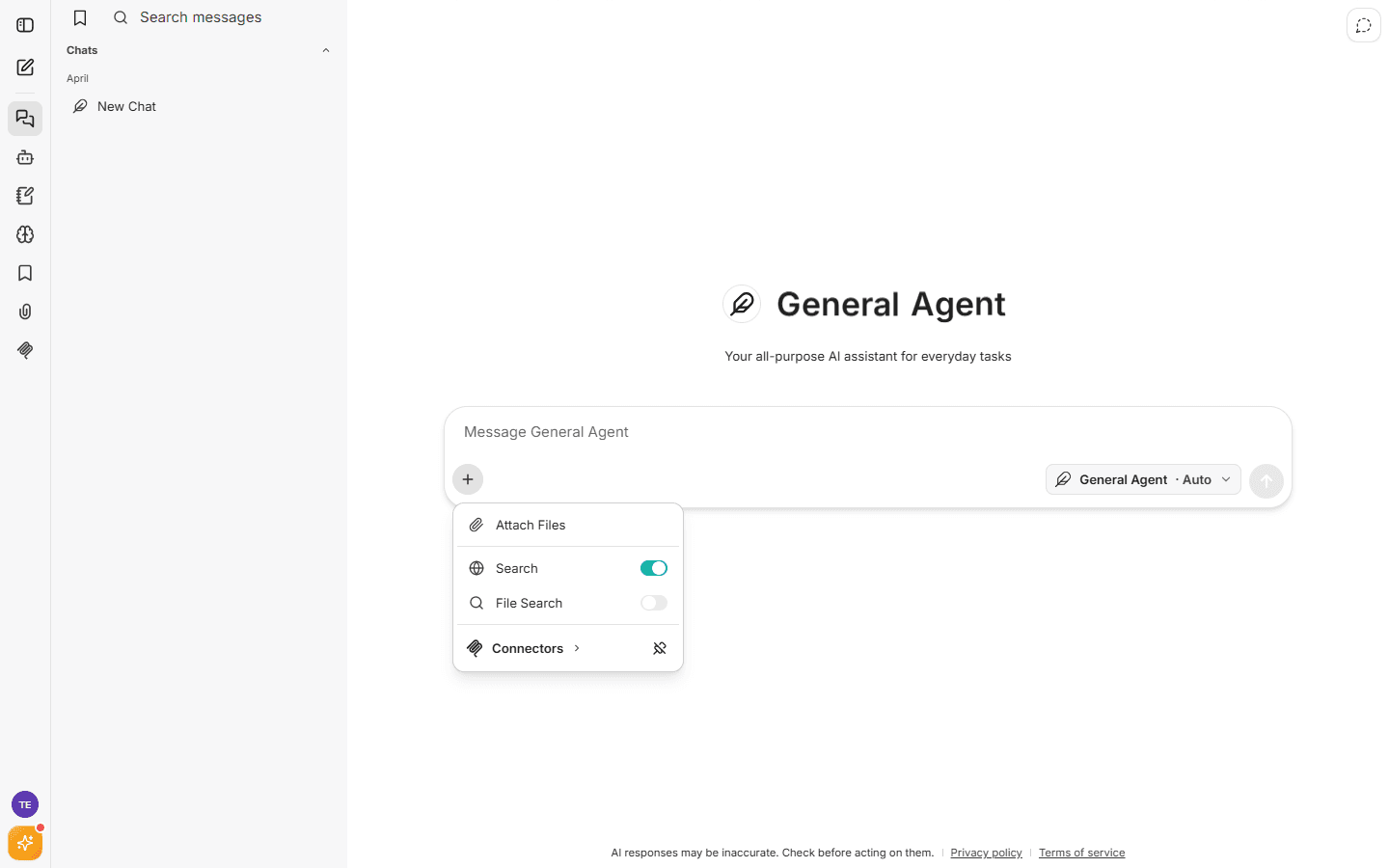
- Attach Files — upload images, PDFs, text files, or JSON. You can attach up to 10 files per message (25 MB each). Images can also be pasted directly into the composer.
- Search (web search) — when on, the assistant searches the live web and grounds its answer in current sources. Responses show a "Searched the web" disclosure you can expand to see the sources used.
- File Search — ask questions across the documents you've uploaded. Answers include citations pointing back to the exact file passages.
- Connectors — connect and toggle your tools (Gmail, Drive, GitHub, Slack, …). See Connectors.
- Image Generation — on plans with image models, switch the composer into image mode. See below.
Web search with citations
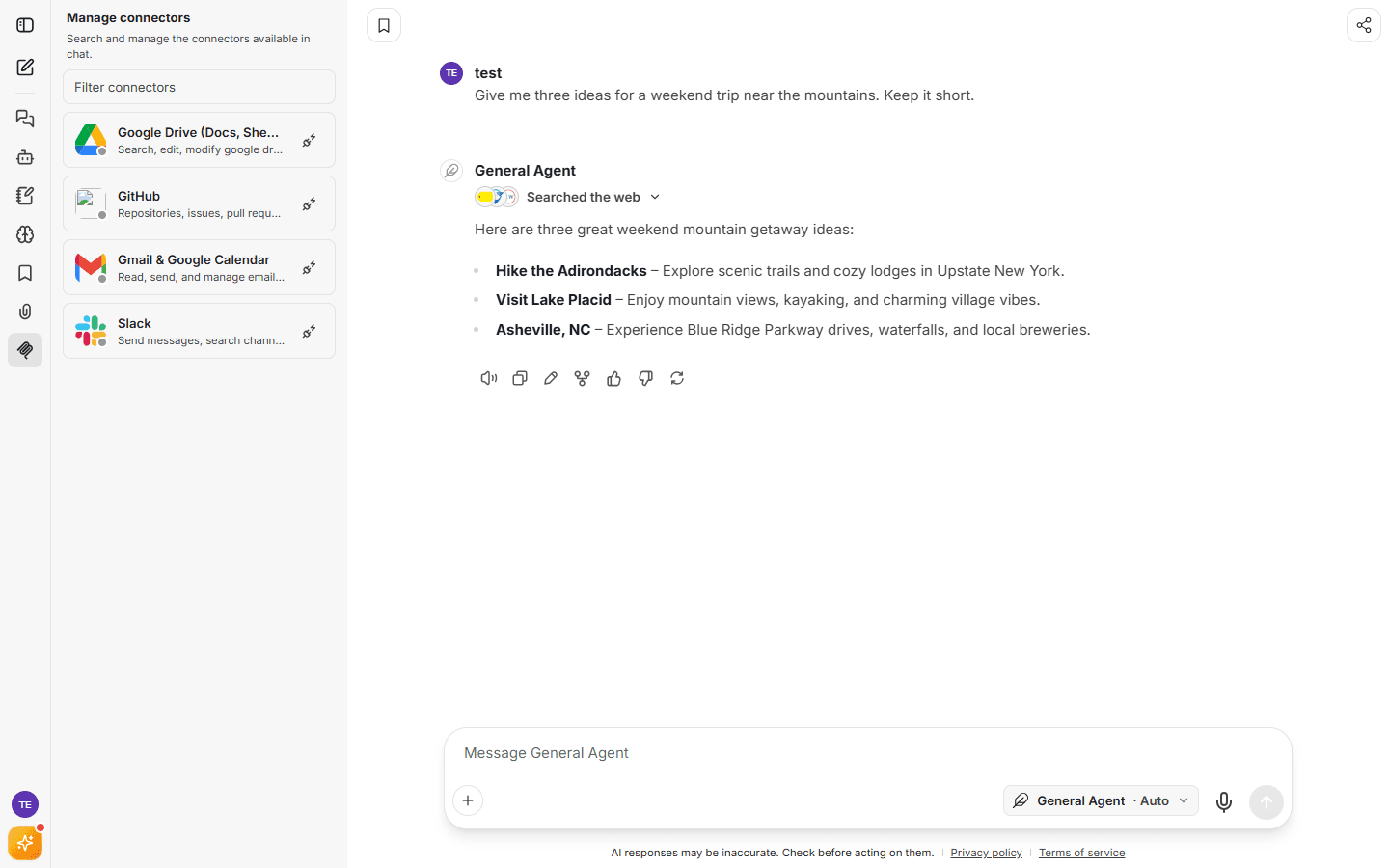
When web search is on, answers begin with a "Searched the web" row showing the sources consulted. Expand it to view and open each source. The Researcher Agent turns this up to eleven — it's designed around search-and-cite workflows.
Working with responses
Hover over any assistant response for the message toolbar:
- Read aloud — text-to-speech for the response.
- Copy — copy the response text.
- Edit — edit your message and re-run from that point.
- Fork — branch the conversation from this message into a new chat, keeping the context.
- 👍 / 👎 — rate the response.
- Regenerate — ask for a new answer to the same message.
You can also dictate messages with the microphone button in the composer.
Images in chat
Two directions:
- Understanding images — attach or paste an image and ask about it. Vision is built into the main models, including Auto.
- Generating images — on plans with image models, enable Image Generation in the + menu. The composer switches to "Describe an image to generate…" with options for aspect ratio, quality, and count. Generated images support Edit (describe a change to the image) and Copy, and edited images are labeled "Edited from previous".
Organizing your work
- Bookmarks — tag conversations from the bookmark button at the top of a chat; browse them via the Bookmarks rail icon.
- Search messages — full-text search over all your conversations from the sidebar.
- Share — the share button in a conversation creates a shareable link to that chat.
- Temporary chat — start a conversation that won't be saved to your history (marked with a distinct composer color).
- My Files — the account menu's My Files opens a manager for everything you've uploaded, so you can reuse or delete files.
- Prompts — save and reuse prompt templates from the Prompts rail icon.
Artifacts
For content that's better as a document than a chat bubble — reports, tables, small interactive apps, diagrams — agents can produce artifacts that render in a dedicated panel beside the conversation.